🔏 Safe and Secure Checkout | 🔄 Easy Returns within 30 days | 📜 Free 1 Year Warranty on all Refurbished Gaming Consoles | 👮🏿 💒 Service Member, Government Worker, EMS & Teacher Discount Up To 20%👩⚕️ 🏥 | 📦🏷️✈️ Free U.S Shipping on Orders over $50 - DAILY WORLDWIDE SHIPPING 📦🏷️✈️
Learning how to test used console controllers starts before you plug anything in. A used controller is a gamble, and the smartest buyers inspect first, then test. Skip the inspection and you might miss cracked plastic, a mushy D-pad, or a cord that's been yanked one too many times.
Here's the order we'd follow.
Check the shell for cracks, deep scratches, or yellowing
Wiggle the cord near the strain relief for fraying
Press every face button and shoulder button by feel
Roll each analog stick in a full circle and listen for grinding
Test the D-pad for stiffness or missed clicks
Check battery contacts for corrosion on wireless pads
Confirm the model matches the console you own
Ask about return policy before you pay
The checklist matters because physical faults rarely fix themselves. A sticky button might loosen up, but a cracked board won't. If the seller won't let you run these checks, walk away.
Watch OutBuying a controller with a frayed cord or corroded battery contacts often leads to intermittent input or a dead pad within weeks. Inspect those two spots first.
How to Test a Controller Without a Console
You don't need the console to know if a pad works. A computer, a USB cable, and a browser are enough to run a full how to test a controller without a console session. This is the trick most casual buyers miss.
Here's the basic flow:
Plug the controller into your PC by USB, or pair it over Bluetooth
Open a browser-based gamepad tester
Press a button and watch for the input to register on screen
Move each stick and check the on-screen values
Pull each trigger and confirm the range
Most modern pads show up as a standard gamepad in the browser. Older ones may need an adapter. If nothing appears, try a different cable or port first. A dead cable fools plenty of people into thinking the pad is broken.
Stick drift is the number one killer of used pads, and it's easy to spot once you know what you're looking at. A controller stick drift test shows whether the analog stick returns to center or wanders on its own. If your character creeps across the screen while you're not touching anything, that's drift.
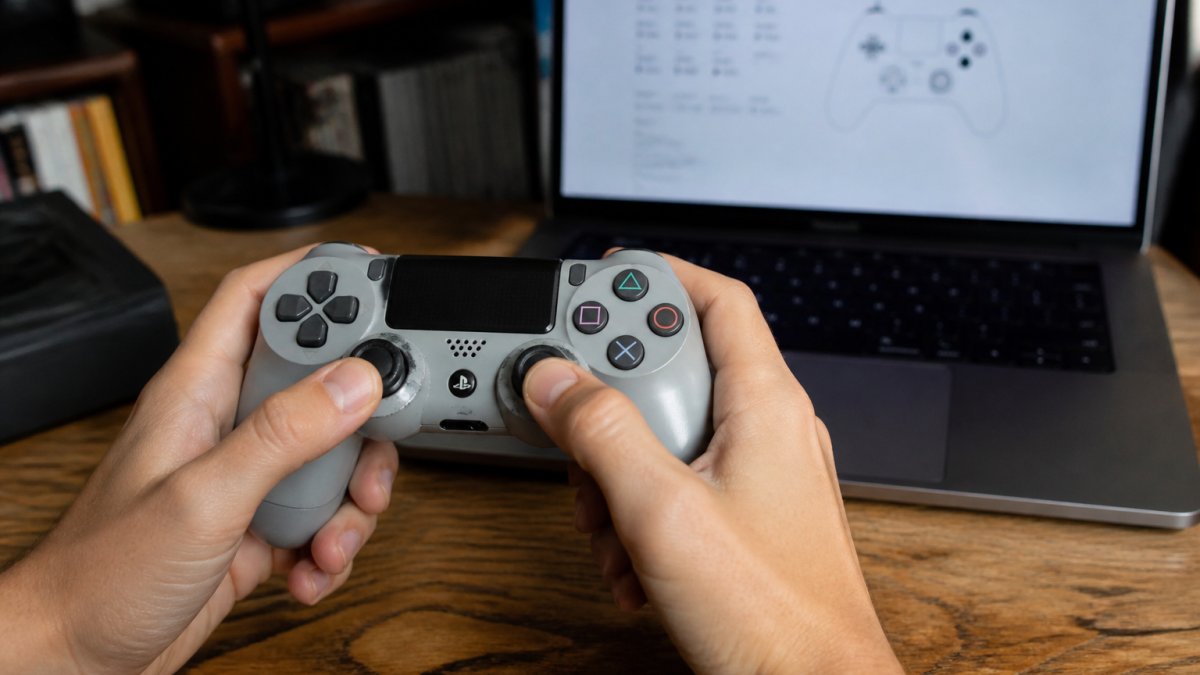
Close-up of a gamer's hands holding a well-worn grey PlayStation DualShock controller, thumbs resting on the analog sticks, with a laptop showing a gamepad tester screen blurred in the background on a wooden desk
Run the test like this:
Open a gamepad tester and leave the sticks alone for ten seconds
Watch the X and Y values at rest; they should sit near zero
Nudge each stick and let it snap back
Check that it returns to the same resting value every time
Roll the stick slowly around the edge and watch for jumps or flat spots
Push the stick to full range in all eight directions and confirm the values max out
A small dead zone is normal, most pads ship with one built in. What you're hunting for is a stick that drifts on its own, won't hit full range in one direction, or returns to a different center point each time. That last one is the tell. A healthy stick snaps back to the same value every release; a worn one lands a few ticks off and keeps getting worse.
Stick drift usually means a tired potentiometer or a loose module. On some pads it's fixable with contact cleaner or a module swap; on others it's a dealbreaker. If the pad has calibration software, many first-party PlayStation, Xbox, and Switch Pro controllers do, try recalibrating before you write it off. A pad that calibrates back to center is a keeper; one that drifts again within minutes is not.
Pro TipTest drift with the controller sitting flat and untouched for ten seconds. Any movement on screen with zero input is drift, plain and simple. Then test it again after ten minutes of play, heat and use often make a marginal stick worse.
::: Proper storage between these rigorous testing sessions prevents unnecessary tension on the analog modules, a practice made easier by utilizing sturdy gaming controller stands.
One more thing gamers miss: drift can be directional. A stick might sit perfect at rest but pull hard when pushed forward. Roll each stick through a full circle slowly and watch the on-screen values for sudden jumps or dead spots near the edges. That's where a worn module shows its hand.
Use an Online Gamepad Tester for Buttons and Triggers
An online gamepad tester is a browser tool that displays every button press, stick movement, and trigger pull in real time. It's the fastest way to confirm button input across the whole pad without booting a game.
Work through it methodically:
Press each face button and confirm it lights up
Tap the D-pad in all four directions
Hit both shoulder buttons
Pull each trigger slowly to check the full range
Test the start and select buttons
Check vibration if the tester supports rumble
Two things trip people up. First, a button can register but feel mushy, so press by feel as well as by sight. Second, triggers sometimes read as a button instead of an analog range. If a trigger only shows on or off, the analog sensor may be worn.
Test Used Console Controllers Through Real Gameplay
A tester catches most faults, but gameplay catches the rest. Real play reveals input lag, intermittent drops, and comfort issues a browser can't show. So boot up a game you know well and put the pad through its paces.
Try this sequence:
Play a fast-paced title that demands quick button response
Run a section that needs precise stick movement
Mash a combo to check for missed inputs
Play for at least ten minutes to spot intermittent faults
Feel for hand fatigue and grip comfort
If a button drops out only under fast presses, that's a sign of a worn contact or a loose connection. Comfort matters too. A pad that cramps your hands after ten minutes isn't a bargain, no matter how cheap it was.
This is also where console settings help. Check that button mapping feels right and that the pad responds the way you expect. If something feels off, compare it against a pad you trust.
Check Wireless, Battery, and Charging on Used Console Controllers
Wireless faults are sneaky. A pad can pair fine, then drop out mid-session. Before you buy a wireless used console controller, run a connection and charging check that goes beyond "does it turn on."
Start with pairing. Connect the pad, then walk a few steps away and watch for dropouts. A stable wireless connection should hold at normal room distance, roughly across a living room, without stuttering. If it drops when you turn your back or put a couch cushion between you and the console, the antenna or board may be tired. Try re-pairing once; if it still stutters, that's a red flag.
Then check the battery and charging like a gamer would:
Plug in the charging cable and confirm the charge light comes on
Leave it charging for a bit and check that it holds a charge
Disconnect and see how long it runs under real play, not just sitting idle
Feel the battery bay for swelling or heat
Check the charging port for looseness or a cable that wiggles
On pads with removable batteries, check the contacts for corrosion or spring tension
A swollen battery is a hard no, stop testing and walk away. A loose charging port often means a repair. On older pads, a tired battery is common and sometimes replaceable, but factor that into what you're willing to pay. A pad that dies in twenty minutes isn't a bargain; it's a project.
Here's the gamer-specific trick: test battery drain under load. Idle time lies. Play a demanding game for ten minutes on battery and watch the indicator. A healthy cell holds steady; a tired one drops fast and then rebounds when you stop. That rebound is the tell of a worn battery, not a dead one.
Pairing stability, real-play battery drain, and a clean charging port are the three wireless checks that catch most used-pad problems before they cost you a return.
Conclusion
Testing a used controller takes about fifteen minutes, and it saves you from buying a pad that drifts, drops inputs, or dies mid-game. Inspect it, run a browser tester, check the sticks and triggers, then play a real game to confirm.
When you'd rather skip the guesswork, Retro Gaming of Denver stocks reconditioned pads that are already cleaned and tested, backed by a 1-year warranty and free shipping on orders over $50. Our Nintendo 64 Controllers and PlayStation Official DualSense Wireless Controller - Playstation 5 are checked before they ship, so you can plug in and play. Shop by popular retro systems and grab a pad you can trust.
Nintendo 64 Controllers
Playstation Official DualSense Wireless Controller - Playstation 5
Frequently Asked Questions
How do you test a used game controller?
Start with a physical inspection, then plug it in or pair it and run a browser-based tester to confirm every button, trigger, and stick registers. Roll each analog stick in full circles and watch for drift, then play a real game for ten minutes to catch intermittent input. A used controller checklist keeps you from skipping steps like rumble, battery, and connection stability.
Can you test a game controller without a console?
Yes. Connect the controller to a PC by USB or Bluetooth and open an online gamepad tester in your browser. It shows button input, analog stick movement, trigger response, and dead zone in real time. This is the fastest way to run a controller stick drift test before you buy, since you do not need the original console powered up.
What should you look for when buying a secondhand controller?
Look for stick drift, mushy or unresponsive buttons, loose triggers, cracked shells, frayed cables, and weak rumble. Test the wireless connection and battery if it is a wireless pad, and confirm the model matches your console. A used controller checklist plus a quick online gamepad tester session catches most faults in under five minutes.
How can you tell if a used controller has been damaged?
Check for physical wear first: scuffed seams, chewed cables, sticky buttons, or a shell that flexes. Then run functional tests. Stick drift, dead zones, and intermittent input usually mean worn analog modules or dirty contacts. If a button only works when pressed hard, the contact pad is likely worn and the controller needs cleaning or repair.




Leave a comment